

Download Super Speed Test – Fast, Free Internet Speed Testing Tool
Overview
Super Speed Test is a lightweight, free-to-use Windows application designed to give users a crystal‑clear picture of their broadband performance. Whether you are a casual gamer, a remote worker, or simply a household that streams movies on multiple devices, understanding the true speed of your Internet connection is essential. Super Speed Test accomplishes this by running a series of download and latency checks across popular browsers such as Chrome, Safari, and Firefox.
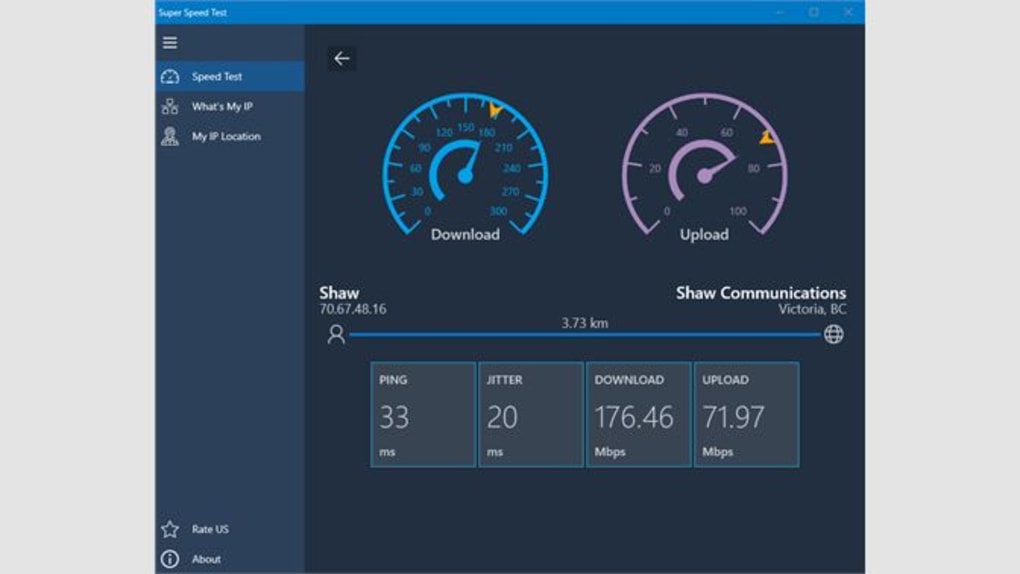
After completing the suite of tests, the program generates a comprehensive report that breaks down download speed, upload speed, ping, and jitter in easy‑to‑read charts and tables. The app’s intuitive interface means you don’t need a technical background to interpret the results; everything is presented in plain language, with recommendations on how to improve weak spots. Because it is built for Windows, the software integrates smoothly with the OS, launching from the desktop or Start menu without requiring admin privileges.
The free nature of Super Speed Test makes it an attractive alternative to paid speed‑testing services, while its secure design ensures that no personal data is transmitted beyond the necessary test files. In short, Super Speed Test delivers a reliable, secure, and user‑friendly way to benchmark your Internet connection from the comfort of your own PC.
Key Features & Compatibility
- Multi‑browser testing: Runs speed checks in Chrome, Safari (via WebKit), and Firefox to capture real‑world performance across platforms.
- Variable file size downloads: Tests include small (1 MB), medium (10 MB), and large (100 MB) files to simulate different usage scenarios.
- Detailed reporting: Generates a PDF/HTML report with graphs, average speeds, peak values, and a summary of latency.
- Real‑time monitoring: Shows live progress bars and instantaneous ping readings during each test.
- Zero‑cost licensing: Completely free for personal and commercial use, with no hidden fees or trial periods.
- Secure operation: All test files are sourced from reputable CDN providers; no personal data is stored or transmitted.
- Automatic updates: Built‑in updater checks for new versions weekly and prompts you to download the latest improvements.
- Lightweight footprint: The installer is under 20 MB and consumes less than 50 MB of RAM while running.
Compatibility: Super Speed Test is optimized for Windows 10 and Windows 11 (64‑bit). The installer will detect the appropriate system architecture automatically. While the core engine is Windows‑only, the generated reports can be opened on any operating system (macOS, Linux, Android, iOS) that supports standard PDF or HTML viewers. For users who need to test on macOS or mobile devices, the same testing methodology can be replicated using the web‑based version of the tool, but the dedicated Windows app remains the most feature‑rich experience.
Installation & Usage Guide
Step‑by‑Step Installation
Installing Super Speed Test is straightforward and takes less than two minutes. First, visit the official download page and click the Download for Windows button. The installer file (SuperSpeedTest‑Setup.exe) will be saved to your default Downloads folder.
Double‑click the file to launch the wizard. You will be greeted with a standard Windows installation screen: accept the End‑User License Agreement, choose a destination folder (the default location works for most users), and click Install. The process copies the executable and required libraries to your system, then creates a shortcut on the desktop and in the Start menu.
No reboot is required.
Running Your First Speed Test
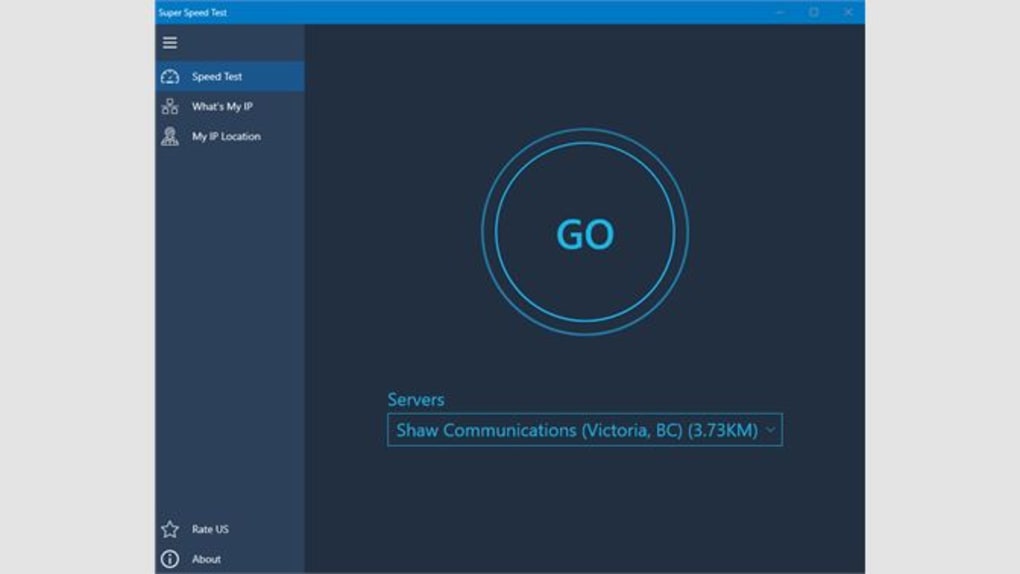
Launch the application from the desktop shortcut. Upon opening, you will see a clean dashboard with three primary tabs: Chrome Test, Safari Test, and Firefox Test. Select the browser you wish to evaluate; the app will automatically launch the chosen browser in a hidden mode, begin downloading test files from a distributed network of servers, and record latency metrics.
You can run all three tests sequentially or focus on the one you use most often. During each test, a live progress bar displays the current download speed in Mbps, while a secondary gauge shows ping and jitter values. When the test completes, click Generate Report.
The report window provides a summary table and clickable charts; you can export the report as a PDF or save it as an HTML file for future reference.
Troubleshooting Common Issues
If the application fails to start, verify that your Windows version meets the minimum requirement (Windows 10, build 1809 or later). Ensure that your firewall or antivirus software is not blocking the executable; you may need to add an exception for SuperSpeedTest.exe. In case of unusually low speeds, close any bandwidth‑heavy applications (e.g., streaming services, large downloads) before running the test. For users behind corporate proxies, the settings menu allows you to input proxy details so the test files can be accessed correctly. The built‑in Help tab provides a link to a knowledge base with step‑by‑step guides and a contact form for direct support.
Pros & Cons
Pros
- Completely free with no hidden costs.
- Multi‑browser testing provides realistic performance data.
- Detailed, exportable reports help track speed trends over time.
- Lightweight installer and low system resource usage.
- Secure, no personal data collection or telemetry.
- Automatic updates keep the tool current without manual effort.
Cons
- Only available as a native Windows application; macOS and Linux users must rely on the web version.
- Requires an active Internet connection to download test files, which may be a limitation on metered connections.
- Advanced network diagnostics (e.g., packet loss analysis) are not included.
- Interface, while functional, could benefit from a more modern visual design.
Frequently Asked Questions
Is Super Speed Test really free?
Yes, Super Speed Test is completely free for both personal and commercial use. There are no hidden fees, subscription plans, or trial periods. The developers fund the project through optional donations and partnerships with CDN providers.
Can I use Super Speed Test on macOS or Linux?
The native application is Windows‑only. However, the underlying testing methodology is available through a web‑based version that works on any operating system with a modern browser. The Windows app remains the most feature‑rich option.
Do I need to close other programs while testing?
For the most accurate results, it’s recommended to close bandwidth‑intensive applications such as video streaming services, large downloads, or online games. This ensures that the test reflects the full capacity of your Internet connection.
How does Super Speed Test protect my privacy?
The software only downloads publicly available test files from reputable CDN servers. No personal data, IP addresses, or browsing history is stored or transmitted. All generated reports are saved locally on your device unless you choose to share them.
Can I schedule automatic speed tests?
Super Speed Test includes a command‑line interface that can be combined with Windows Task Scheduler. By creating a simple batch file that launches the test in silent mode, you can schedule daily or weekly speed checks and have the reports saved automatically.
Conclusion & Call to Action
In a world where reliable Internet connectivity is no longer a luxury but a necessity, Super Speed Test offers a powerful, free, and secure solution for Windows users who want to understand exactly how their network performs. Its multi‑browser approach, detailed reporting, and lightweight design make it an essential tool for anyone looking to diagnose slowdowns, verify ISP promises, or simply keep tabs on their home network health. Because it’s free and regularly updated, there’s little reason not to give it a try. Download Super Speed Test today, run a quick benchmark, and take the guesswork out of your Internet speed once and for all.







